Workout logging
Workout Log Template for Sets, Reps and Weights
Download a free workout log spreadsheet and printable PDF, with a completed example and clear fields for sets, reps, weights, units and equipment notes.
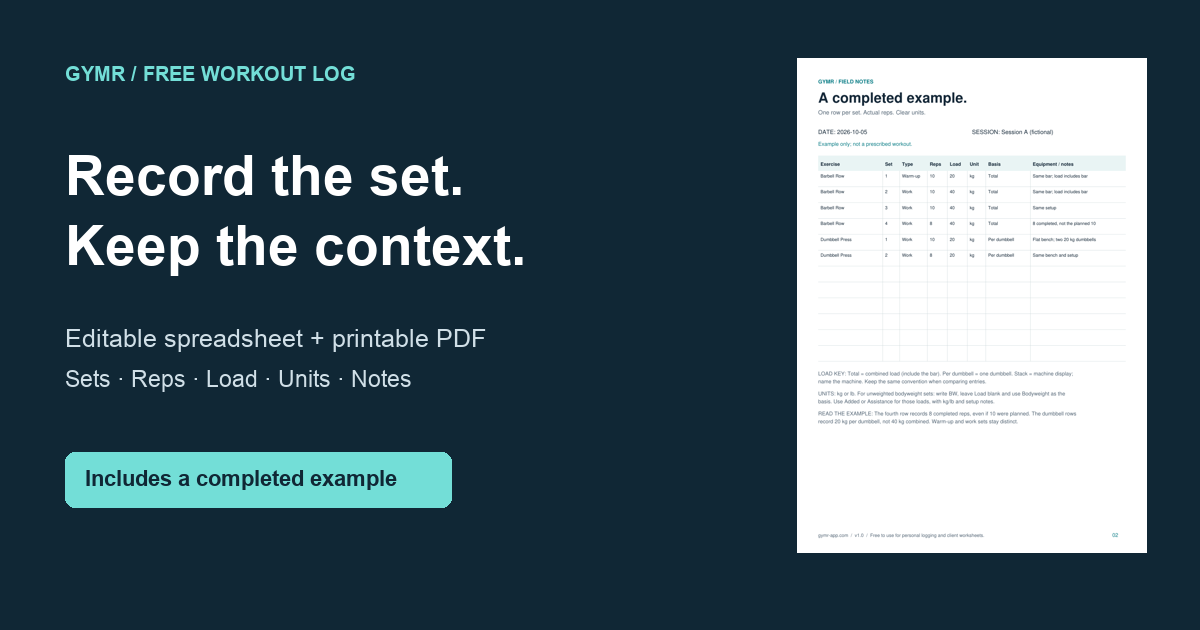
Download an editable workout log or print a sheet for your next session. Both formats use one row per completed set, with space for the weight convention and equipment notes that make the record useful later.
Download the template
- Editable workout log (Excel XLSX) — Start here instructions, 150 blank set rows, and a separate fictional example. Includes filters and dropdowns; no formulas or macros.
- Printable workout log (A4 PDF) — a blank session sheet followed by a completed example. Print page 1 to use the blank log.
- Printable workout log (US Letter PDF) — the same two-page resource sized for US Letter paper.
- Completed example (CSV) — six fictional set records, with the same column names as the workbook. This is sample data, not a blank template.
The files are free to download without an account. Choose the spreadsheet if you want to filter past entries, or the PDF if you prefer handwriting. This is a recording tool for a workout you have already chosen, not a training program.
Start with one completed set
Open the workbook's Start here tab, then enter your own records in Workout log. Leave Example as a reference. On paper, fill in the date and session name at the top before you start recording sets.
Record the exercise name, set number, set type, completed reps, load, unit and load basis. Add equipment or setup details when they will help you recognize the exercise next time. In the spreadsheet, repeat the date and session on every row so that filtering does not separate a set from its context.
Use the set-type field to distinguish warm-ups from work sets. Number sets in the order performed for each exercise. The fictional example includes one warm-up followed by three work sets for the row, so its set numbers run from 1 to 4. They restart at 1 for the next exercise.
Read the completed example
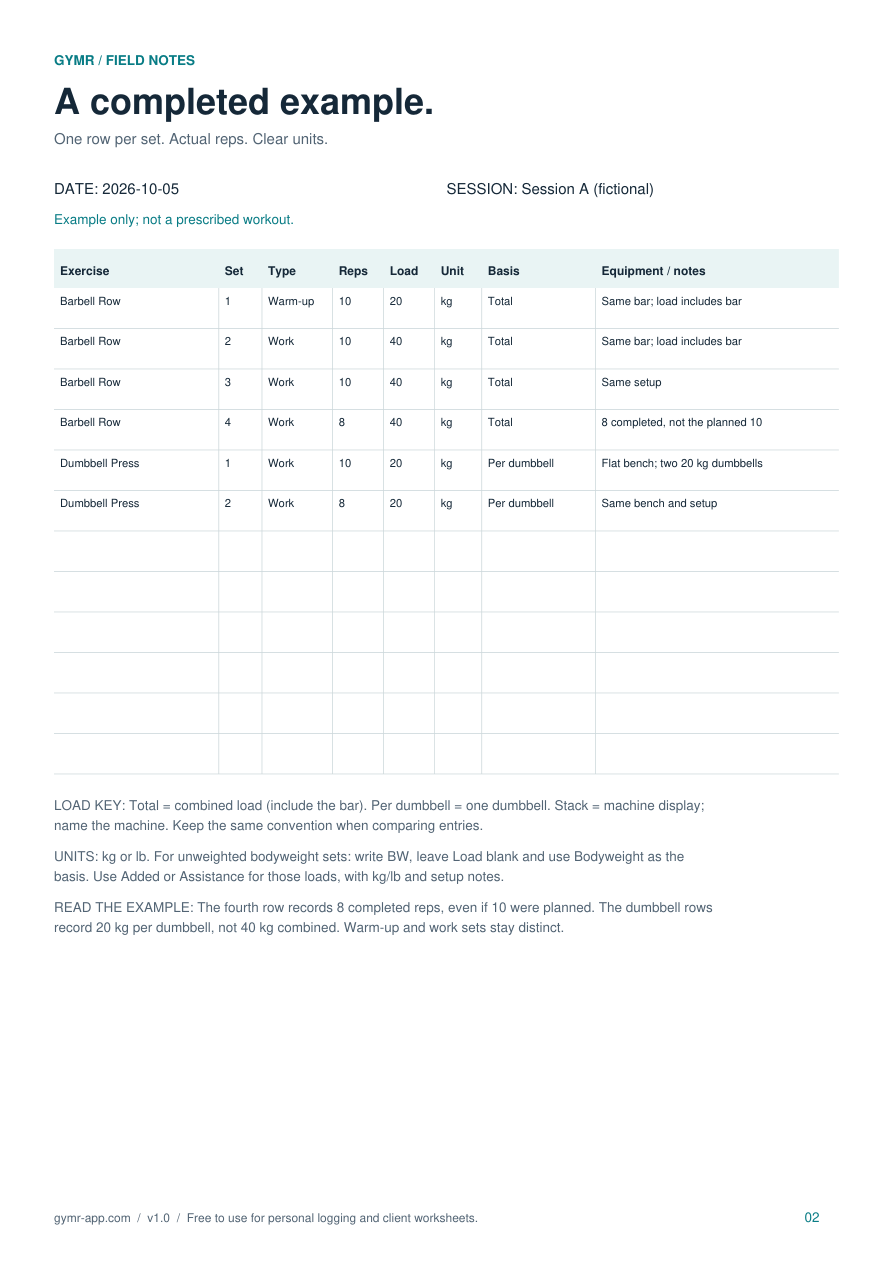
The first example row records a Barbell Row warm-up: 10 reps with a total load of 20 kg. The next three rows record work sets at 40 kg for 10, 10 and 8 completed reps. The notes identify the same bar and explain that the load includes it.
The fourth row says 8 reps even though the fictional plan called for 10. That difference is useful information. Do not copy a target into the completed log when the actual result was different, and do not add a completed-set row for a set you skipped.
The final two rows record Dumbbell Press sets at 20 kg per dumbbell, for 10 and 8 reps. The first note says that two 20 kg dumbbells were used. The recorded number is 20, not the combined 40, because the basis column explicitly says Per dumbbell. These examples show how to fill in the fields; they are not suggested exercises, loads or rep targets.
Make the weight entry unambiguous
- Total: the combined load you record. For the barbell example, that includes the bar.
- Per dumbbell: the load of one dumbbell. Keep this convention consistent in later records.
- Stack: the machine's displayed value. Identify the machine and relevant settings in notes.
- Bodyweight: for an unweighted bodyweight set, choose BW as the unit and leave Load blank.
- Added or Assistance: record the added or assisting load with kg or lb, then describe the setup in notes.
The sheet does not convert kg to lb or calculate a strength score. It also does not make different machine labels or load conventions equivalent. Compare records only after checking that the exercise, equipment, unit and basis match. If a value is unknown, leave it blank and explain why instead of guessing.
Reuse it without losing your history
The workbook provides 150 blank set rows. Keep adding completed records below the previous ones. When you run out, start a new copy with a clear date range, or extend the table and copy the dropdown validation into the new rows. Keep the earlier file rather than clearing your history.
To use it in Google Sheets, import the XLSX file and check the date display and dropdowns after import. The separate CSV contains only the worked example; it does not preserve the workbook's formatting or dropdowns. For paper logging, print page 1 of the PDF at actual size using the matching paper size, and keep page 2 as your reference.
You can use and adapt these files for personal logging or client worksheets. Share the original files unchanged with Gymr credit; do not resell the unmodified files or imply Gymr endorsement.
Choose how you want to keep logging
For more on which details to record, read how to keep a useful workout log. If you are deciding between formats, the spreadsheet versus app comparison explains the tradeoffs.
Prefer recording sets on your iPhone? See the Gymr workout tracker. These downloads are standalone resources; there is no direct spreadsheet import into Gymr provided with this template.